

What is FG Vector
FG Vector turns your iPhone into a personal golf training system. Its AI watches your body through the camera, detects every swing automatically, and estimates ball flight — then a personal AI coach turns your session data into daily, human-readable advice.
The app is built around five tabs:
| Tab | What it does |
|---|---|
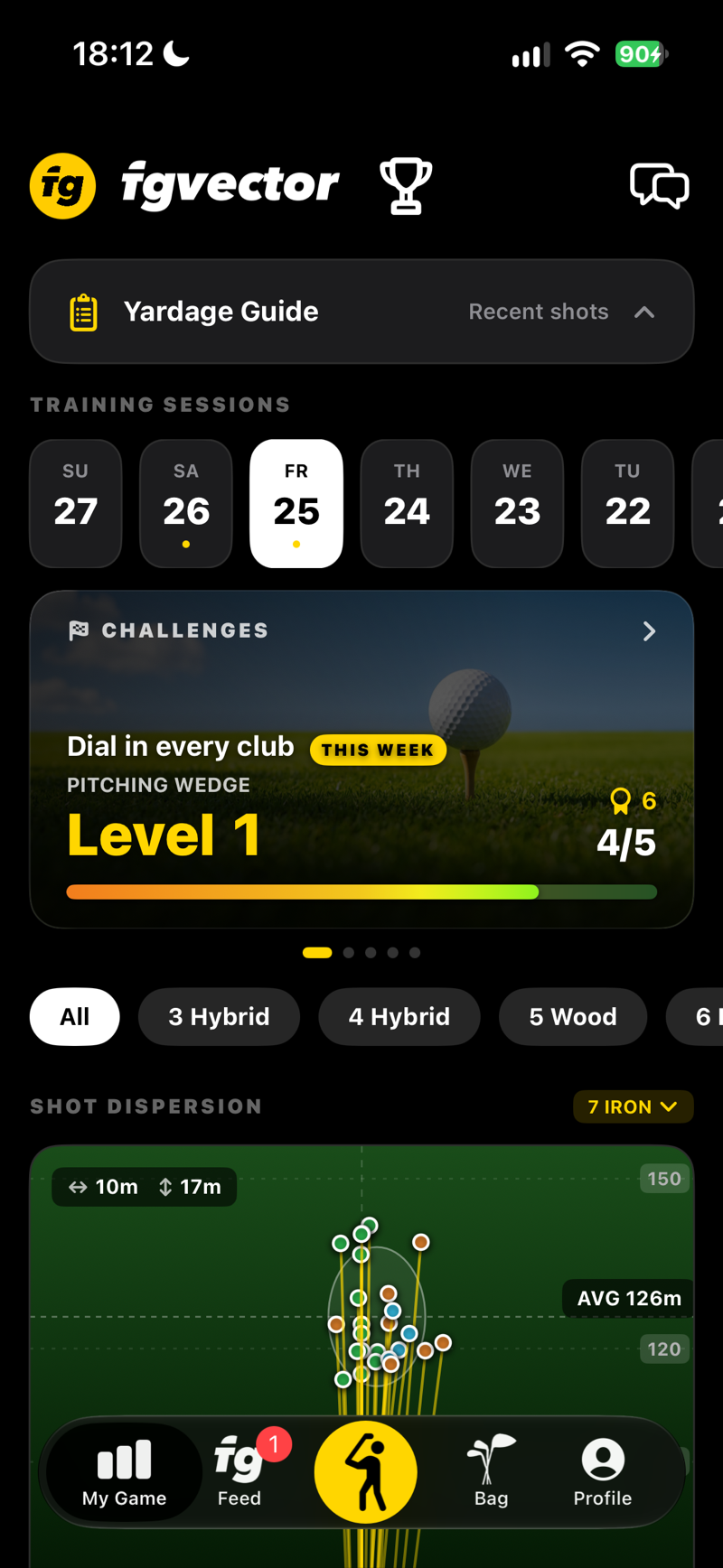
| My Game | Your dashboard — training sessions, shot videos, yardage guide, training calendar, and your daily coach report. |
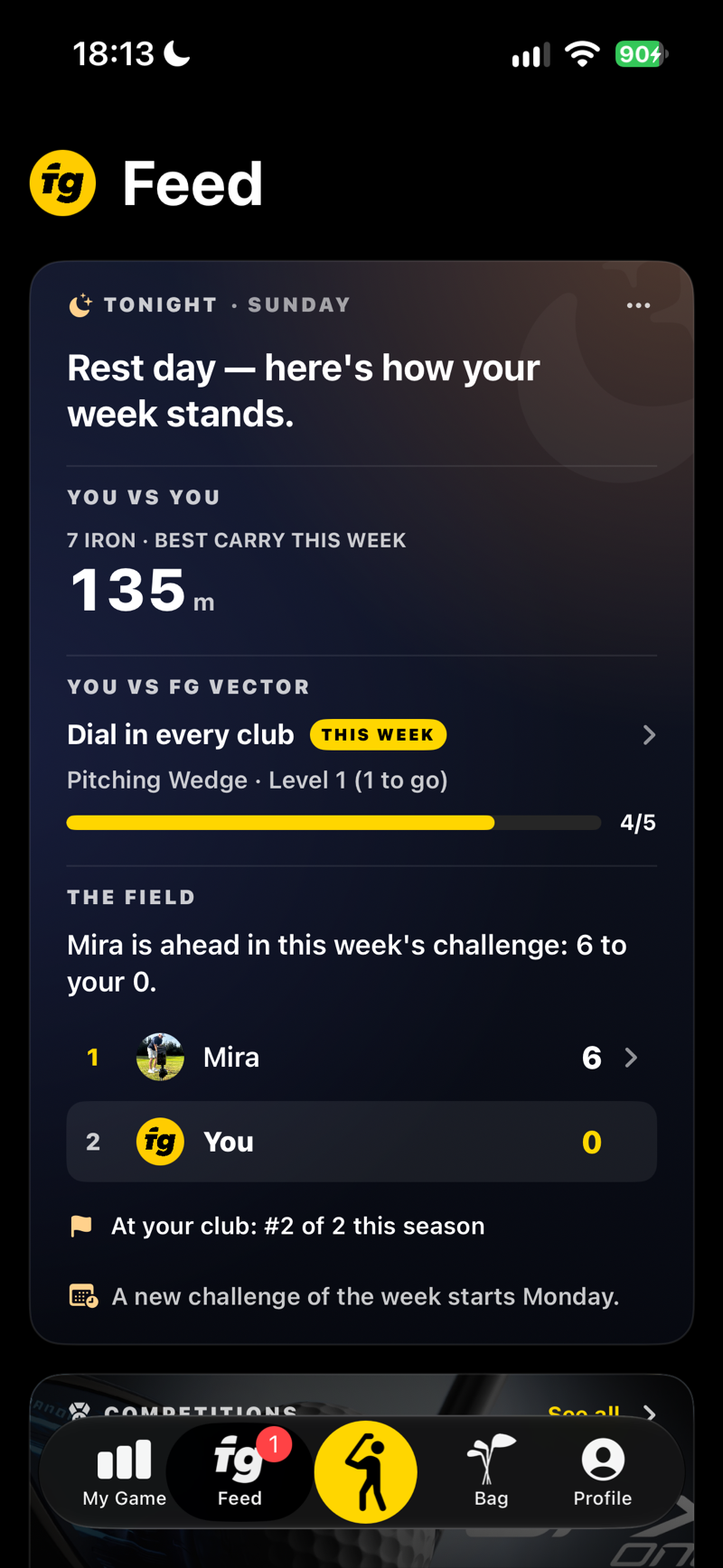
| Feed | Your activity hub — training sessions, badges, coach analyses, and support, all in one place. |
| Training | The AI camera. Set up your phone, address the ball, swing — every shot is detected, measured, and saved automatically. |
| Bag | Your clubs. Add them manually or auto-import a whole iron set; every club builds its own distance and quality statistics. |
| Profile | Your player profile, units, subscription, watch pairing, achievements, swing videos, and account settings. |
 SCREENSHOT
My Game dashboard with sessions list
 SCREENSHOT
Feed — sessions, badges and coach analyses
 SCREENSHOT
Training tab — camera view with silhouette and ball reticle
 SCREENSHOT
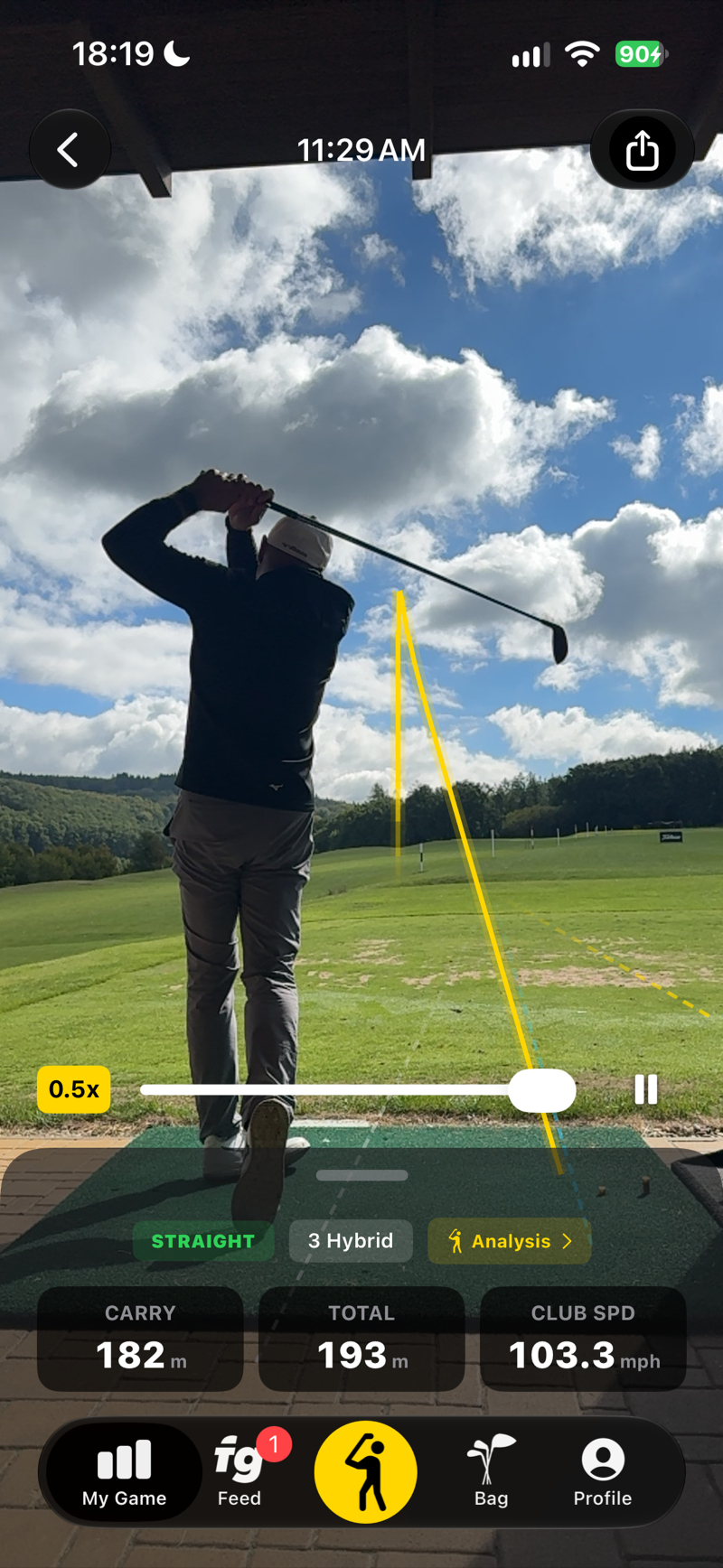
Shot detail with video, tracer and stats
Honest numbers, honest positioning. FG Vector measures the ball you actually hit in your shot video and estimates the shots it can't measure. The numbers are designed to be consistent — perfect for tracking trends, gapping your clubs, and measuring progress over time.
Quick Start
From download to your first measured shot in five minutes.
Sign in
Use Sign in with Apple, Google, or e-mail. Your profile, stats, and achievements are backed up to the cloud.
Your profile
Five short screens: right- or left-handed, height, handicap, where you play, and your AI coach. There's no speed or distance to type in — the app measures those from your shots.
Mount your iPhone
Tripod, three normal steps away so your whole body and the full club fit in frame, facing your stance, lens at fingertip height. How well the app can read your swing and the ball depends on this step more than on any other. FG Vector is a camera system, so it also needs daylight or good lighting.
Ball first, then your club
Open the camera and follow the voice: put a white ball on the mat, aim the phone so the ball sits in the circle, set the range-end line. Then pick your club in the top-left menu. See Your routine at the range.
Just swing
No record button. The AI detects your address posture, hears the impact, saves the shot, and announces the result out loud.
How to play: Sound on → Place a ball → Step up and wait for “Ready to play” → Hit → Wait for the result → Next ball. The app starts recording only when it sees you at address and says “Ready to play” — a shot hit before that isn’t captured.
Every new account starts with 5 free training sessions of the full app, with no time limit — no payment details required. See Free Trial & Subscription.
First Launch & Setup Important
On first launch you'll see a short welcome tour followed by five short setup screens. The app reads the camera image using your height and stance, and starts from your handicap — take a minute to get them right.
What the wizard asks for
| Field | Why it matters |
|---|---|
| Gender & birth date | Used by your AI coach to personalize training advice. |
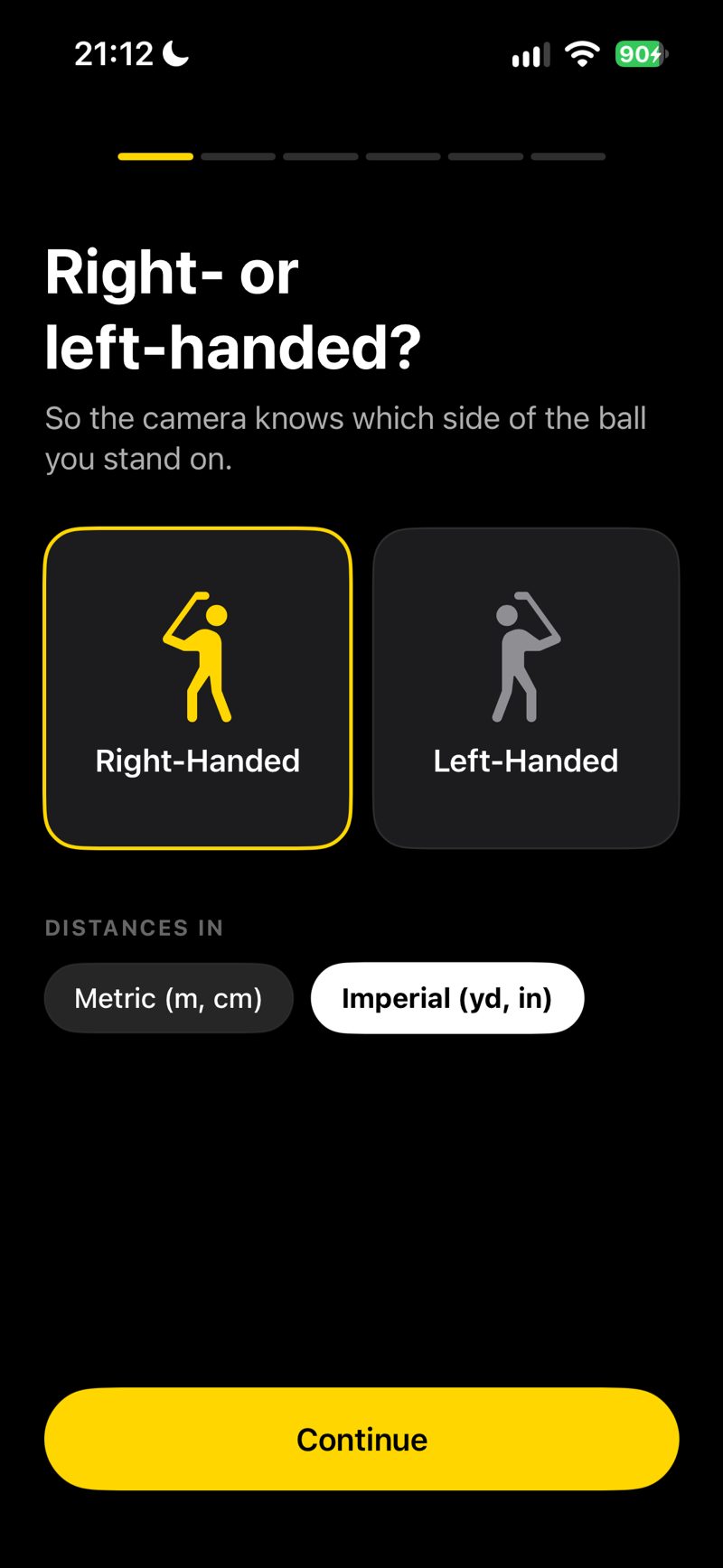
| Stance (Left / Right-handed) | Mirrors the entire camera view, silhouette, and tracking for left-handed players. |
| Height | Get this one right. The AI uses your height as the physical scale to convert camera pixels into meters and mph. |
| Handicap / PRO toggle | Range −15 to 54, or flag yourself as a professional. Your starting level until the app knows you from your own shots; also feeds plausibility checks and coach context. |
| Units | Metric (m, cm) or Imperial (yd, in). Can be changed anytime in Profile. |
| Experience & goals | Years playing, primary goal (e.g. "Break 90", "More Distance"), country, city, home club — all context for your AI coach. |
| My AI Coach | Choose the coaching personality that will write your daily reports and chat with you. See AI Coach. |
Get these three right: your height, your stance, and your current handicap. You never type in a speed or a carry — the app takes those from the shots it measures. You can change everything later in the Profile section of the Profile tab.
How the app gets to know you
There’s nothing to calibrate by hand. FG Vector measures the ball you actually hit and gets to know your swing as you play.
Measured shots: right away
When the app measures the ball, you see the shot’s numbers and hear them out loud straight away — from your very first shot.
Shots it can’t measure: after a short warm-up
If the ball can’t be measured and you don’t have measured shots with that club yet, the app estimates the shot from your swing — and for that it first needs to know you. Take your 7 iron and hit about twenty shots; the app counts them out loud as you go.
Until the app knows you. A shot it couldn’t measure keeps its numbers hidden for now: you’ll see a dash and a Calibrating label instead of distances, and the voice counts your shots (“Shot 5 of 20.”) instead of calling out metres. The club selector switches to the 7 iron on its own and the app tells you to use it. Hidden shots stay out of your averages and your shot dispersion until they appear. Your Apple Watch shows the same held state.
When it’s done you hear “Calibration complete. Shots without a measured ball now show numbers too, and they’ll keep refining with your play.” — the hidden shots appear with their numbers, and from then on every shot is announced normally. It can be sooner: five measured 7-iron shots are enough. After that your player level comes from your own measured 7-iron shots (the median ball speed of the last 30 days), so it keeps up with your game. Your 7-iron club speed is in your Bag like every other club’s, and Iron fitting uses it.
 SCREENSHOT
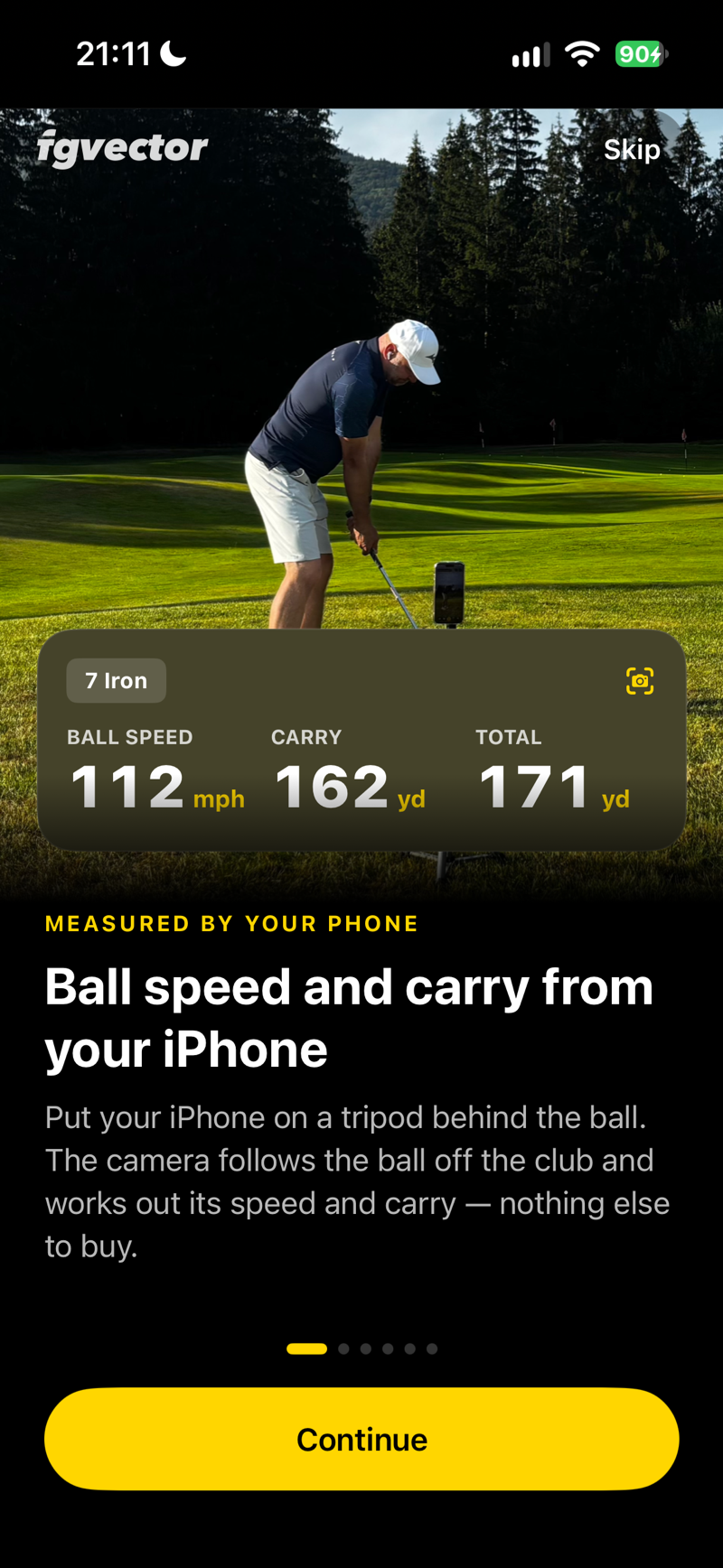
Welcome tour — swing tracking slide
 SCREENSHOT
Watch every swing back
 SCREENSHOT
Your numbers, out loud
 SCREENSHOT
In your ears and on your wrist
 SCREENSHOT
Always something to play for
 SCREENSHOT
Profile setup — body & stance
Need to change something? You can edit everything later in the Profile section of the Profile tab. Just make sure your height and stance are correct before recording — they directly affect every measurement.
Camera Setup Important
Phone placement matters more than anything else: how well the app can read your swing and the ball depends on it. Every time you open the camera, a card on screen and the voice walk you through the setup step by step — here is the same routine in writing.
Your routine at the range — ball first
Do this every time you come to the range, in this order. The ball comes first: the app measures the ball it sees in the circle, and with the ball already down you set up the phone once instead of walking back and forth between the phone and the mat.
Good light, white balls, sound on
FG Vector is a camera system: it measures the ball from video, so it needs daylight or good lighting and white balls. The light is checked first, as soon as you open the camera. In low light — at dusk or in a dim indoor space — the ball can’t be measured: the app tells you, gives no setup instructions and doesn’t say “Ready to play” until there’s enough light. Yellow and coloured balls aren’t supported for measurement — that’s a limit of the app, not of your balls. If the app spots yellow balls in the circle, it reminds you. Keep the sound on. FG Vector is hands-free and guides you by voice: it tells you when to play (“Ready to play”), walks you through the setup and reads out your numbers. With the sound off you don’t know when to swing — so don’t play with the volume down. Silent mode doesn’t mute the app; the volume level is what matters. AirPods or a Bluetooth speaker work too. From version 1.0.3, when the volume is low as you open the camera, the app shows a card asking you to turn the sound up.
Place the ball
Put a ball on the mat where you’ll hit from — on a tee or next to it. As the camera opens you hear “Place a ball on the mat and aim the camera at it from three steps away.” Once the phone stands still, the card moves on by itself, or tap Ball’s down.
Aim the phone at the ball
Tripod three normal steps behind the ball, lens at fingertip height. The circle on screen stays where it is — you turn the phone until the ball sits inside it. When the app sees the ball, the circle turns green and you hear “The ball is set. Now move the range-end line and set its length.” If the ball looks too small, the phone is too far away: you hear “Move the phone closer to the ball.”
Set the range end
Drag the line to the far end of the area you’re hitting into, and tap the distance at its end to set how long the range is. Once it’s right, leave it for two seconds, or tap Done — the line turns green. If you come back within a few hours, the app usually skips this step.
Ball check
If the app spots yellow balls, you hear “The app measures most reliably with white balls.” Then: “All set. Place a ball, step up to it and wait for Ready to play. Then hit. After the shot, wait for the result.” With this sentence your training plan and the TODAY line appear at the top of the screen. The card on screen shows the same four steps.
Wait for “Ready to play”, then hit
Step up to the ball. When the app sees you at address, it starts recording and says “Ready to play” — only then swing. A shot hit before it isn’t captured. After the shot, wait for your result, then put down the next ball. In your first session, after your first shots the app reminds you: “Next ball — step up and wait for Ready to play.” If the app doesn’t see the ball in the circle as you address it, you hear “The ball isn’t in the circle. Aim the phone at the ball.” instead of “Ready to play” — your swing is still recorded. If the ball ends up somewhere else than at the start, after a shot you hear “The ball position has changed. Play from the same spot as at the start, or aim the phone at the new ball position.”
During play the app gives at most one tip per shot, after your numbers have been read out and before “Ready to play” — for example “Turn the phone so the ball is in the circle.”, “Move the phone closer to the ball.” or “I can’t see the ball in the circle. Set the phone three steps behind the ball and aim it so the ball sits in the circle.” If it gets too dark during play, the app tells you and doesn’t say “Ready to play” until the light is back.
The circle never moves. Tapping it only focuses the camera on that spot — it doesn’t move the circle or tell the app where the ball is. If the ball isn’t in the circle, turn the phone. In strong backlight the app may not spot the ball: tap Done and carry on. Skip (top right) closes the guide, and ? → Show setup again brings it back.
Where the phone goes — three rules
Distance — three normal steps
Put the phone on the tripod three normal steps behind you, cameras turned toward you, looking down the line to your target. Your stride scales with your height, so your entire body including the full club stays in the frame — nothing to measure.
Lens height — fingertips (critical)
Let your arm hang naturally and match the camera lens exactly to the bottom edge of your fingers — approximately pocket height. This height is different for every player, so re-adjust the tripod whenever someone else steps in.
Stability — vertical, on a tripod
Keep the iPhone perfectly upright and mounted securely. Handheld recording or leaning the phone against a bag makes it much harder for the app to read your swing and the ball.
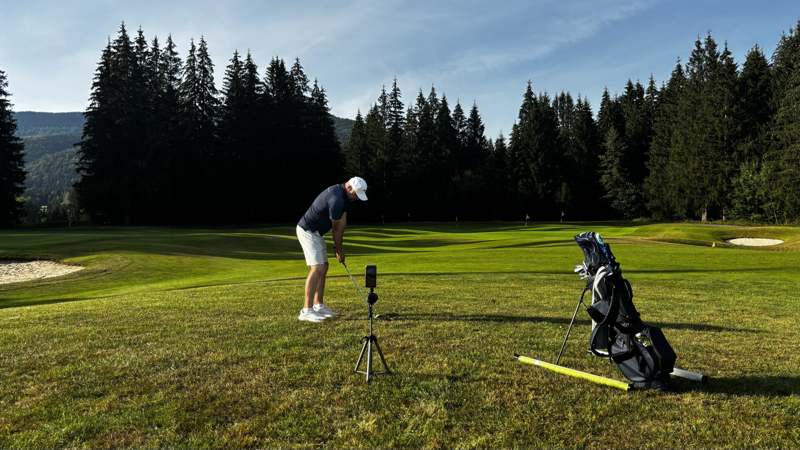 PHOTO
PHOTOReal-world setup: tripod, phone, player at address
The on-screen silhouette and perspective grid are your friends. When your body roughly fills the golfer silhouette and the ball sits in the circle, your framing is correct. If the silhouette looks too big or too small, move the tripod.
Fine-tuning the setup
The routine above covers everything the app needs. Here are the details behind it — the ball always comes first, because everything else is lined up around it.
Ball in the circle, focus
The camera focuses on the circle by itself. If you want, tap the circle to lock focus there: the circle turns white, a FOCUS LOCKED card appears, and the app says “Focus locked” out loud. Tapping never moves the circle — if the ball isn’t inside it, turn the phone.
Level the phone
A dashed line with a small ring runs across the screen. While the phone is tilted the line is yellow; straighten it on the tripod and it turns green, with a small click you can feel. The figure under the line is the tilt in degrees — up to 1° counts as level. The FOCUS LOCKED card from step 1 shows the same figure, with a green tick once the phone is level.
Drag the line to the far end
The app puts the line at the height that suits a long, flat range. Most practice areas are shorter than that, and yours may run uphill or downhill — so drag the line up or down with your finger until it sits on the far end of the area you are hitting into: the end of the range, or the far edge of a practice green. The guide lines follow it, and the ring on the line marks where they meet — handy for placing it precisely. Never move the phone to fix this — that would undo the ball framing from step 1. The correction is remembered, so it is a one-off at your home range. If the line ends up well away from its starting height, a note shows how far it is shifted; double-tap the line to reset it. The chip at the right end of the line (for example 300 m) is the length of your range — tap it to change it in 50 m steps.
SCREENSHOTLine on the far end of the range
 SCREENSHOT
Focus locked, phone level
 SCREENSHOT
Pick the club you are hitting
 SCREENSHOT
Training plan
The line stays on screen for the whole setup and disappears only when you address the ball and recording begins — so you can still adjust it after locking focus. If you move the phone, it comes back on its own.
Audio Guidance for Solo Players
Place the ball where you’ll play from first. Set the iPhone on its tripod three normal steps behind the ball, looking down the line to your target, and turn it until the ball sits in the circle. Walk to the ball and take your stance — and listen: the app will tell you whether to move the phone closer or farther. Once you hear “Distance is good” (and the silhouette turns green), you’re ready to play.
The directional cue plays only once per direction — no chatter right at the threshold edge (after a cue, it waits 2.5 s before it can speak again). If you reposition the phone and the direction changes, distance is re-measured. Even the safety check at address now names the direction (“too far” / “too close”) instead of a generic “check your distance.”
The colored silhouette and ring around the ball (green/orange) remain as a visual backup — for a playing partner, or when you walk back to check the phone yourself.
Device & Environment Limits
FG Vector keeps an eye on your phone’s health and the shooting conditions while you record, and speaks up if something could affect your session — from overheating to storage, battery, microphone, and light.
Overheat Protection
Measuring runs the camera at 240 fps while pose analysis processes every frame — full processor load for the whole session. In direct sun or on a hot day, the phone can overheat within minutes, especially clamped to a tripod where no air reaches it.
An overheated phone starts dropping frames. With too few frames per swing, the measured speeds and distances stop matching reality — a wrong number is worse than none, so FG Vector pauses measuring instead of showing you numbers you can’t trust.
Two-stage warning. The app watches both the phone’s thermal state and the camera’s actual frame throughput. At the first sign you’ll hear “Phone is overheating. Move it into the shade.” and measuring continues — moving it to shade usually fixes it on its own. If it worsens, measuring stops: “Measurement stopped, the phone is overheating. Let it cool down.” with an on-screen explanation, and won’t restart until the phone has cooled. The check also runs the moment you open the camera, so a phone already hot from the car or a pocket in the sun is caught before your first shot.
What to do
Move to shade
Get the phone out of direct sun.
Take it off the tripod
Let air reach it so it can cool.
Wait 5–10 minutes
Usually enough for it to cool down.
Measuring resumes automatically once the phone cools down. Shots recorded before the pause stay saved — you won’t lose anything.
Preventing it: Put the tripod in the shade even if you’re standing in the sun, remove any thick case, and in real heat take longer pauses between sets with the phone resting in the shade.
Other Device Checks
Camera Setup also watches five more things while you record, and speaks up if any of them could affect your session.
| Check | When it triggers | What it says |
|---|---|---|
| Storage | Room left for about 100, then 30 and 10 more shot videos / a shot’s video would eat into the space kept for measuring / no room even for a temporary clip | “Phone storage has room for about N more shot videos.” / “Storage is running low. Videos are no longer saved, measuring continues.” / “Phone storage is full. Shots can’t be measured until you free up space.” |
| Battery | 20% and again at 8% | “Battery is low, measuring drains it fast.” |
| Microphone | No permission granted | “No microphone access, practice swings won’t be detected.” |
| Light | First thing when you open the camera, before any setup instructions; during play, when it gets too dark | That there isn’t enough light to measure the ball. Until there is, it gives no setup instructions and doesn’t say “Ready to play”. |
| Ball colour | Yellow balls in the circle (once a day) | “The app measures most reliably with white balls.” — ball measurement needs white balls, see Your routine at the range |
Timed so they don’t overlap. Storage and battery are checked the moment you open the camera, and storage again after every shot, once your numbers have been read out; the microphone check waits 3 seconds; light is checked only once the camera has settled its exposure and the phone has stood still for a few seconds (or it would report darkness even on a sunny day), and once more at the end of setup, just before “All set”. During play, tips come only after your numbers have been read out, at most one per shot.
Battery is checked periodically (at most once a minute) and stays silent while charging, so it won’t nag you when the phone is on a power bank.
Measuring comes first. FG Vector keeps a reserve of free space for measuring and never fills it with videos: when a shot’s video would eat into it, the video isn’t saved, but the shot is still measured and saved. Once you free up space, videos are saved again on their own. Shots can’t be measured only when there’s no room even for a temporary clip. Tap Free up space on the camera card (or in Profile → Swing videos) and pick the days whose shot videos can go — the shots and their numbers stay. Apart from that, only overheating and too little light pause measuring. Every threshold here is remotely tunable, so if something turns out to be annoying (like the light threshold outdoors at dusk), we can adjust it without a new app build.
Training Tab — Recording Shots
There is no record button. FG Vector watches, listens, and does everything automatically so you can focus on hitting balls.
The screen, explained
- Club selector (top left) — pick the club you're hitting. If you've built your Bag, you'll see your own clubs with brands; otherwise a standard club list is offered. The selected club is saved with every shot.
- Training plan (top) — choose how many shots to hit and how to mix the clubs: mini-blocks of 3, a different club every shot, blocks then mixed then random, or play a hole. Once you tap Start plan, the strip shows which club is up and switches the club for you.
- TODAY line — one thing to focus on, carried over from your last session: your coach's swing thought, a challenge you nearly finished, a gap in your Yardage Guide, or your season goal. It is only a reminder, there is nothing to tap.
- Golfer silhouette — a faint outline showing where you should stand in the frame. It mirrors automatically for left-handed players.
- Ball circle — the circle where your ball should be. It stays fixed: aim the phone so the ball sits inside it. During setup it turns green when the app sees the ball. Tapping it only locks focus there — the circle turns white and the status reads "LOCKED. YOU CAN HIT."
- Status light & text (top) — yellow: waiting for you · green: address posture detected · red: recording your swing.
- Leaf button — Power Saver mode. Dims the screen to near-zero brightness while the AI camera and voice feedback keep running. Great for long range sessions — tap the screen to wake.
- Flag button — finishes the session. Tap it twice, so it never happens by accident.
- ? button — tripod tips, and Show setup again to replay the setup guide at any time.
 SCREENSHOT
Session summary
How automatic detection works
- Address detection — the AI recognizes your golf address posture (it even checks knee flex, so casual movement around the ball doesn't trigger anything) and arms the recording.
- Audio impact trigger — the microphone listens for the exact "click" of ball impact to timestamp the moment of contact precisely.
- Swing analysis — 10+ body points are tracked through the entire swing: spine angle, hips, wrists, elbows, head. The shot is measured, scored, and saved.
- Voice feedback — the app announces your result out loud (carry and total distance) in your language, so you never have to walk to the phone between shots. Available in all 16 supported languages.
Long session? Use Power Saver (the leaf button). The screen goes dark but the AI camera keeps detecting shots and the voice keeps announcing results. Battery lasts dramatically longer.
Video is optional. By default every shot's video is saved to your phone. If storage is a concern, turn off Profile → Swing videos → Save video of every shot — the AI analysis works exactly the same without saving videos.
Understanding Your Numbers
Open any shot and tap the panel under the video, or swipe it up: Kinematics shows the shot shape, the club, and the numbers below. Here's what each one means.
| Metric | Unit | What it tells you |
|---|---|---|
| Carry | m / yd | Estimated distance the ball flies through the air before first landing. |
| Total | m / yd | Estimated total distance including roll-out. |
| Club Speed | mph | Estimated clubhead speed at impact. |
| Ball Speed | mph | Estimated ball velocity right after impact. |
| Smash Factor | — | Ball speed ÷ club speed. A measure of strike efficiency — around 1.5 with a driver is tour quality. |
| Launch Angle | ° | Estimated vertical angle the ball launches at. |
| Apex | m / yd | Estimated maximum height of the ball flight. |
| Shot Shape | — | Predicted shape: Straight, Draw, Fade, Hook, Slice, Push, Pull. |
| Quality | 0–100 | Swing quality ring: the average of the swing-fault scores the app could read on that shot — the higher, the better. Green from 75, yellow from 40, red below. |
| Tempo | ratio | Backswing-to-downswing time ratio, from your Apple Watch. Tour players average about 3:1. |
| Start | ° L / R | Where the measured ball started, compared with your usual start line — not with the target. |
Folded down, the panel shows carry, total, and club speed over the video. Opened up, it adds ball speed, apex, and launch, plus a row of tiles: Tempo, Quality (tap it to open the swing analysis), and Start once the app knows your usual start line. A number marked ≈ couldn’t be measured on that shot and comes from your usual shots with that club. Smash factor is in your Bag statistics.
 SCREENSHOT
Shot detail — Kinematics panel
Tempo comes only from your Apple Watch. Garmin watches don’t send tempo. The bar is green from 2.4 to 3.4, yellow from 2.1 to 2.4 and from 3.4 to 3.8, and red outside that; tour players average about 3:1. Wedges are rated on full swings only — a 3/4 or half swing shows its tempo in gray, without a rating. If you’ve never used an Apple Watch, the tile says Available with Apple Watch once and then stays hidden; if the watch was on but missed the swing, it says Not captured.
Think trends, not single shots. All values are estimates designed for consistency. One shot's carry number matters less than your typical carry across many shots — and that's exactly what the Yardage Guide and Bag statistics show.
Distances match the balls you practice with. FG Vector measures the ball you actually hit, so on the range the numbers are for range balls. On the course, with your own ball, expect it to fly farther — about 10 % on average. The difference is small with wedges (around 5 %) and stays small with the shorter irons up to the 7-iron; it grows with the longer clubs and can reach about 15 % with fairway woods and the driver. The same note appears under the session header in My Game.
Swing Fault Analysis
Every shot is checked for twelve swing faults — the ten that make up your swing quality score, plus Deceleration and Rushed Transition, which are shown but don’t count toward the score yet. Each fault gets a score from 100 (Good) to 0 (Issue), with Watch in between, and the app gives you a concrete fix — open any shot and tap Analysis. Only the faults the app could read on that shot are listed.
Head Movement
Lateral and vertical head movement during the swing. Fix: keep your head still through impact; watch the ball until after contact.
Loss of Posture
Change of spine angle from address to impact. Fix: maintain your spine angle — standing up causes blocks and inconsistency.
Early Extension
Hips thrusting toward the ball in the downswing. Fix: keep your glutes on the line; practice with your back against a wall.
Chicken Wing
Lead elbow collapsing at impact instead of extending. Fix: extend both arms through the ball; try the towel-under-arm drill.
Over the Top
Club coming from outside the target line. Fix: start the downswing with your hips, not your shoulders.
Casting
Early release of wrist angle in the downswing. Fix: hold the lag longer — feel your hands leading the clubhead.
Sway
Hips sliding away from the target in the backswing. Fix: rotate around your spine instead of sliding.
Slide
Hips sliding toward the target in the downswing. Fix: focus on hip rotation, not lateral movement.
Reverse Spine
Upper body tilting toward the target at the top. Fix: keep your spine tilted away from the target.
Tempo
Backswing-to-downswing time ratio from your Apple Watch; tour players average about 3:1. Fix: finish your backswing before you start down — or, if your backswing drags, keep it flowing to the top with no pause.
Deceleration
Slowing into the ball instead of accelerating through impact. Fix: commit to the shot and let the club accelerate through the ball; on chips and pitches, keep the follow-through longer than the backswing.
Rushed Transition
The downswing starts before the backswing has had time to finish. Fix: feel a brief pause at the top, then start down with your hips.
Partial swings are for wedges only. Every other club always counts as a full swing. A wedge swing is sized by your Apple Watch, or by the camera if you aren’t wearing one. On a 3/4 or half wedge swing, Casting shows Partial swing instead of a score and tempo is shown in gray, without a rating; on a half swing, Chicken Wing and Rushed Transition show Half swing — these faults look different on a shorter motion.
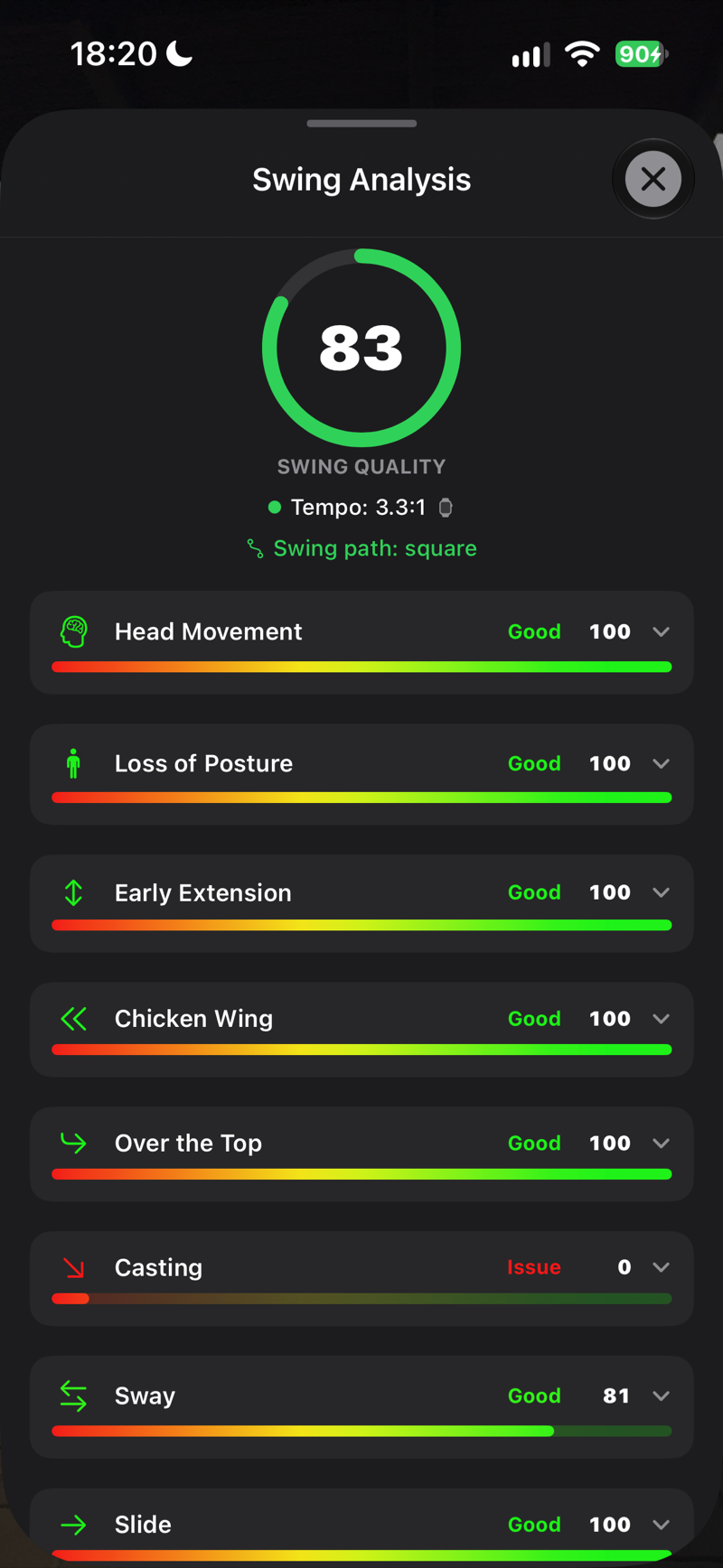 SCREENSHOT
Swing analysis screen with fault scores
My Game — Sessions & Stats
Your dashboard. Every practice day becomes a training session, every shot is browsable with its video, and your long-term numbers build automatically.
Training sessions
Shots are grouped into daily sessions ("Today's Session", "Yesterday's Session", …). Tap a session to browse its shots — each row shows the club, carry, speed, shot-shape badge, swing quality score, and a video thumbnail. Swipe a row to reveal quick actions, or tap the swing score circle for instant fault feedback.
Swing size (wedges) & practice swings
Wedge shots are automatically tagged by swing size — full, three-quarter, or half — by your Apple Watch, or by the camera if you aren’t wearing one. The size is shown as three small dots next to the club (all three filled = full swing, two = three-quarter, one = half). That’s where swing size matters: controlling distance with a shorter swing. With every other club each shot counts as a full swing, so the dots and the filter appear only for wedges.
When your session has wedge shots, tap Swing size in the session header to filter: All swings, Full (1/1), Three quarter (3/4), Half (1/2), or Practice Swing. With all clubs shown, the filter narrows only the wedges and leaves shots with other clubs in the list.
FG Vector measures only shots with a ball. A swing without a ball — a practice swing or a waggle — is recognised and not counted: you hear “Practice swing.” and the shot is marked as a practice swing, on the phone and on Apple Watch. If the ball is measured, it counts as a real shot, even when a soft wedge strike barely makes a sound. Practice swings never go into your stats, averages, challenges or free training sessions.
Selected club check
If your swing speed doesn’t match the club you have selected — most often, an iron or wedge selected for what was actually a driver, wood, or long-iron swing — FG Vector notices and says “Check your selected club” out loud. The shot’s timestamp and club name turn orange with a warning triangle in your session.
Your numbers are already recalculated using the estimated correct club, so they’re usable right away. Tap the orange club chip to confirm the club was actually right, or pick the correct one from your bag — everything recalculates instantly and syncs to the cloud. Until you confirm or fix it, the shot is held out of your Yardage Guide, Bag averages, and coach reports.
Shot detail & smart tracer
Tap any shot to open its video. The panel under the video shows the shot’s numbers — tap it or swipe it up for all of them (see Understanding Your Numbers) — and one tap opens the Analysis view with your swing-fault breakdown. With ball flight curves switched on in FG Lab, the smart tracer draws the ball-flight arc over your video, starting exactly at the ball’s position — the shot you open is computed first and its curve appears on the next play.
Sharing your shots
Tap the share icon on a shot. Post to FG Vector publishes the shot video to your profile, and players who follow you see it in their Feed — clean, without the logo and app badge. Share video… exports the same video for Instagram, TikTok, or your coach: your swing plays in real time, then switches to 0.25× slow motion just before impact, with the flight curve and a stats overlay rendered in.
Driving View — your shots on a 3D driving range
Every shot with numbers flies again on a photorealistic 3D driving range, built from its ball speed, launch, apex, carry, total and start direction. Open a shot and, in the switch at the top right, tap the mountains icon next to the video camera: the Driving range takes the place of the video. The button below switches the view between Behind the golfer and Follow the ball. The range follows the four seasons and has a golf course around it. Practice swings, shots marked Not captured and shots still waiting for your calibration have no flight.
Driving View doesn’t need the video. A shot without one opens straight on the driving range, and the flight stays after you delete the video — it’s built from the shot’s numbers, so it also comes back from the cloud on a new phone.
Your session on the driving range
In My Game, open a training day and tap the mountains icon on the SHOT DISPERSION card: the day’s shots land on the driving range with their flight curves, the estimated ones (≈) fainter. Pick clubs with the buttons at the bottom to compare them — for example gap wedge and pitching wedge — and drag to turn or zoom the view. The share icon at the top left posts a picture of the view to FG Vector or shares it elsewhere.
Sharing the flight
With the driving range open in a shot, tap the share icon: Post to FG Vector, or share a video of the flight in 9:16 or 4:5 with your numbers popping in. The video uses the view you picked — behind the golfer or following the ball.
 SCREENSHOT
Driving range — behind the golfer
 SCREENSHOT
Driving range — follow the ball
 SCREENSHOT
Session dispersion with flight curves
 SCREENSHOT
Flight video to share
Yardage Guide
The most valuable screen for the course: for every club you've trained with, your median carry and total from the last 30 days (90 days for a club with fewer than 5 shots in that time), plus the range where the middle half of your shots land, the number of shots, and the club’s loft. Clubs are listed by loft, not by distance. The distances are for the balls you train with — on most ranges, range balls. Taking your own ball to the course? The Range ball | Course ball switch above the table shows an approximate conversion (about +5 % for wedges, +7 % for the 7–9 irons, +9 % for the 4–6 irons, +11 % for hybrids, +13 % for fairway woods and +15 % for the driver) and marks converted numbers with ≈. Practising with premium balls? Then you don't need the conversion. Full swings count by default; swing size applies only to wedges, so the Swing size switch above the wedge rows lets you pick 3/4, half, or all swings.
Shot dispersion & calendar
The Shot Dispersion chart plots your session's shots by direction and distance so you can see your pattern at a glance. Pick a club on the chart’s yellow badge and the whole page follows, just like the club buttons under the calendar. The training calendar shows which days you practiced across the last months — keep the streak alive.
 SCREENSHOT
Sessions list with shot rows
SCREENSHOTVideo with tracer arc over ball flight
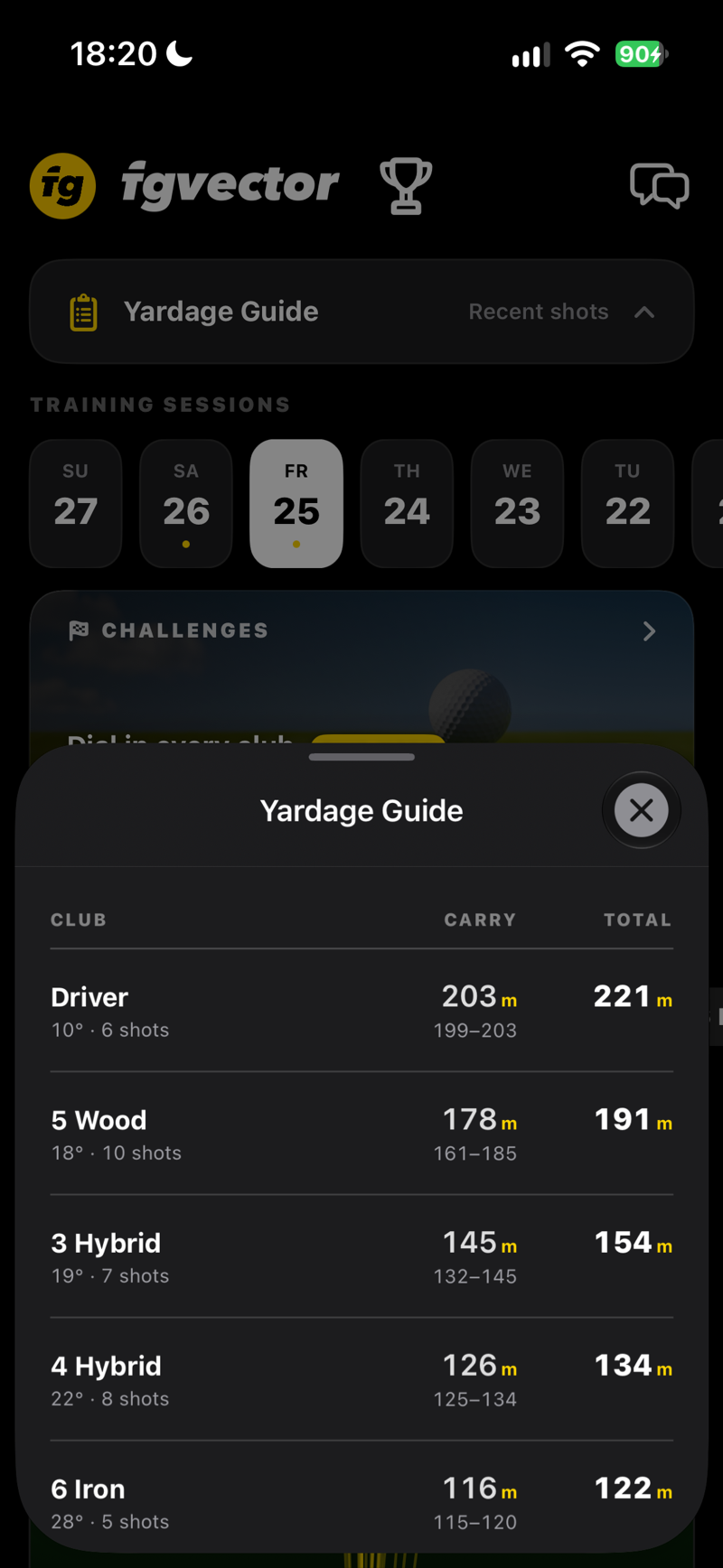 SCREENSHOT
Yardage guide table per club
 SCREENSHOT
Shot dispersion chart
 SCREENSHOT
Session averages by club
 SCREENSHOT
Season goal
 SCREENSHOT
Training plan in My Game
Managing storage: in any shot detail you can delete just the video (keeping the measured data) or the entire shot. Deleting a video never deletes your stats.
Your Personal Coach
Choose a coaching personality and get a personalized written analysis of your training — automatically, after every serious session.
Coach personalities
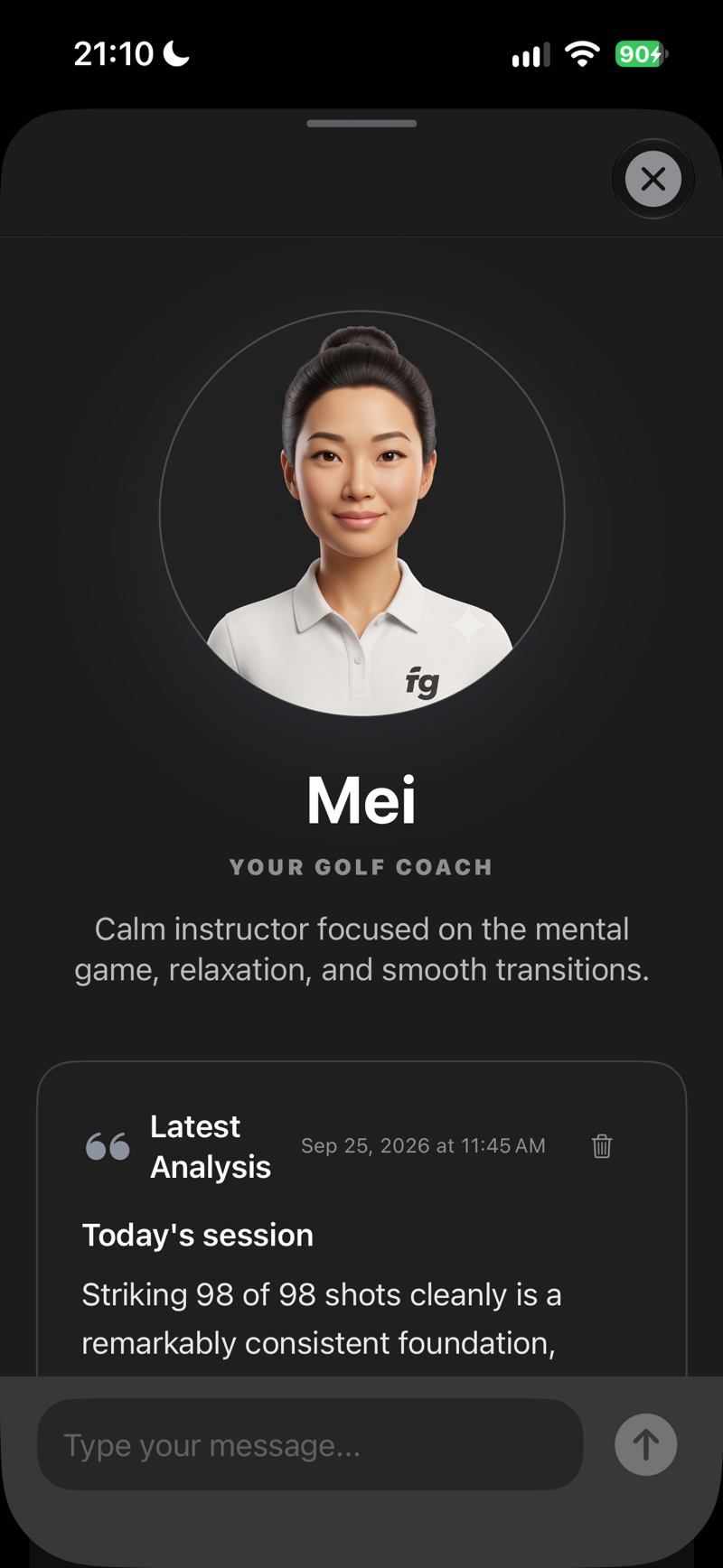
During onboarding (or anytime in Profile) you pick one of four coaching styles — from a data-driven analyst to a calm zen mentor, a motivator, and an old-school veteran. Each writes in their own voice, in your language.
Daily reports
- Hit at least 30 shots in a day (15 are enough during the free trial), and when you finish training your coach analyzes the session.
- Your report arrives in the evening: at 7 pm your local time, or 15 minutes after you finish if you train past 7 pm. That's when it appears in My Game and in the Feed, and if you allow notifications, one Evening summary lets you know.
- One training day = one report. Reports track your long-term training arc — your coach remembers what you worked on last time and builds on it.
- The coach sees your aggregated session stats, profile, goals, and achievements — never your videos.
Chat with your coach
Reply to any report or ask questions in the built-in chat (Profile → My Coach). There's a fair-use daily message limit — when you reach it, your coach is ready again tomorrow. Your coach can also recommend equipment from the falbergolf.com shop with direct links when it's relevant to your game.
 SCREENSHOT
A coach who has seen every shot
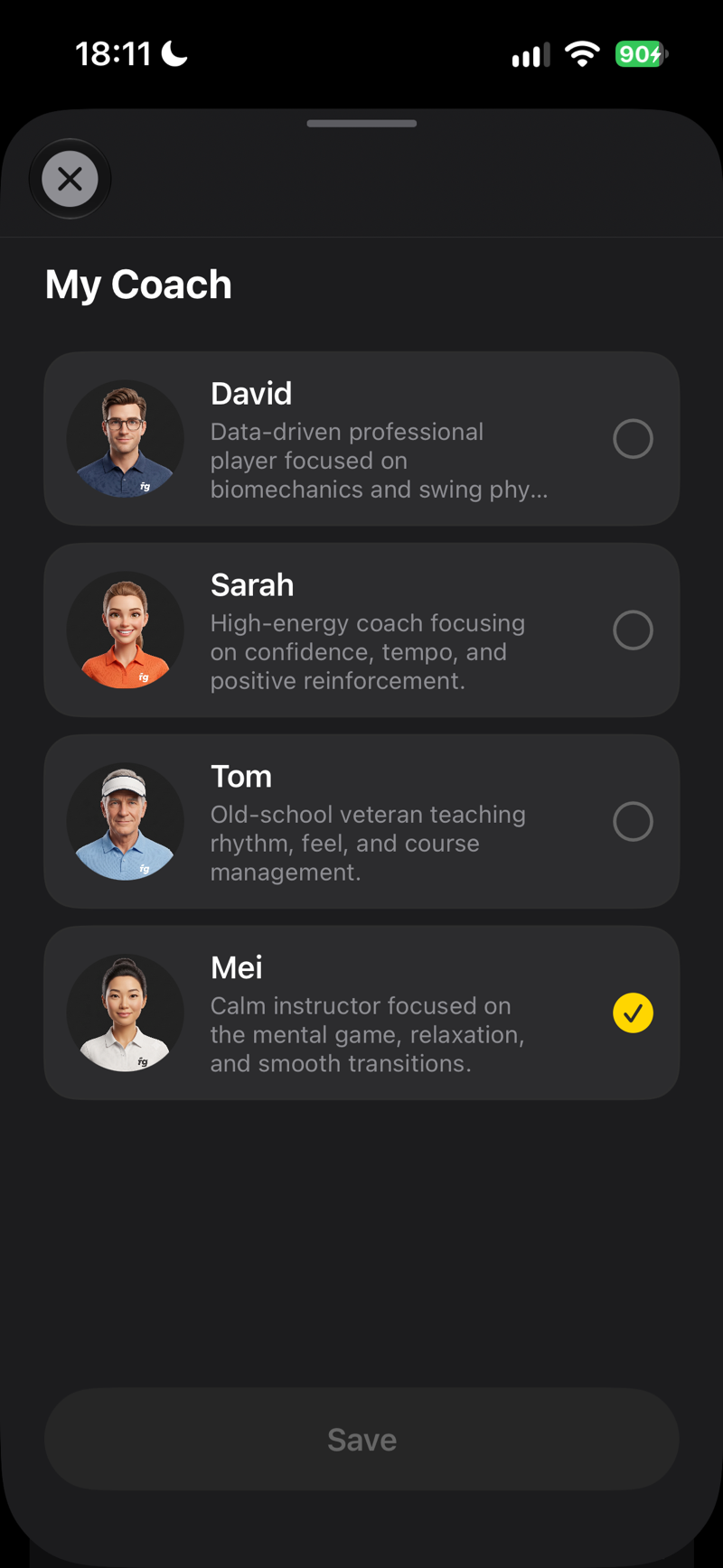 SCREENSHOT
AI coach selection list
 SCREENSHOT
Daily coach report card
Consent first. The AI coach only activates after you explicitly agree to AI processing of your shot statistics and golf profile (shown on first open of the Coach Dashboard). You can withdraw consent anytime with the “Withdraw consent” button in the “AI processing” card at the bottom of the coach screen, or by contacting [email protected]. Your existing reports and chat stay in your account until you delete them.
My Bag
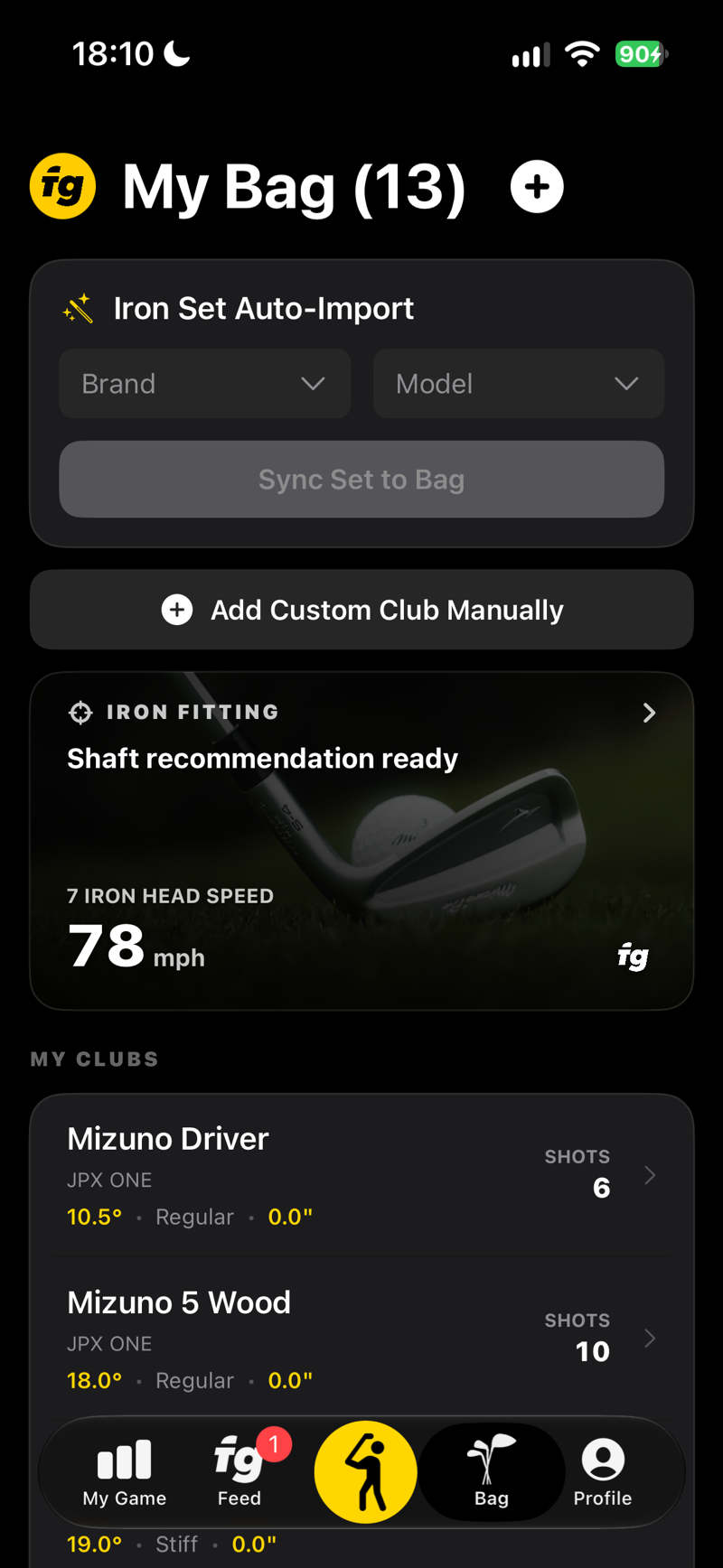
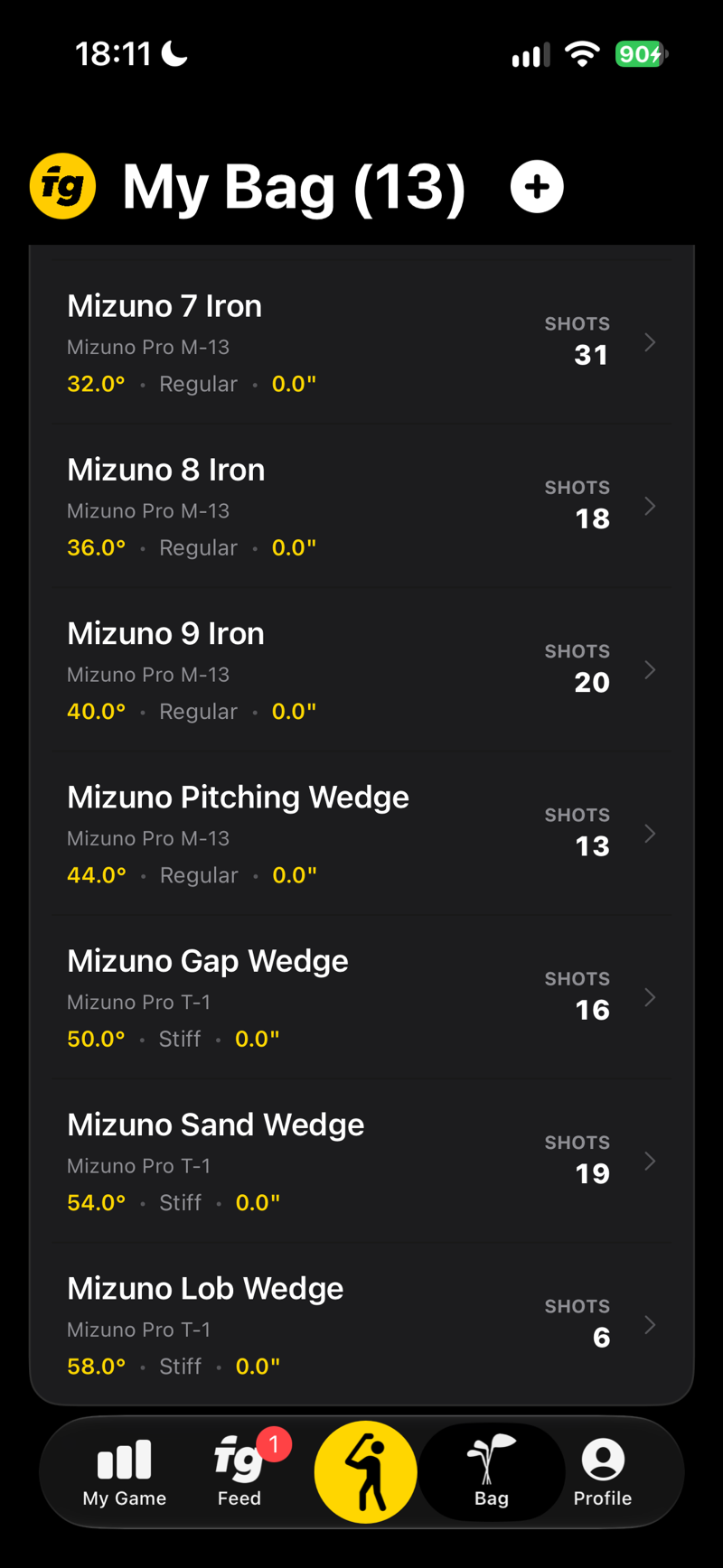
Tell FG Vector what's in your bag, and every club builds its own statistics profile over time.
Adding clubs
- Iron Set Auto-Import — pick a brand and model, choose shaft stiffness and length offset, and sync the whole iron set into your bag in one tap.
- Add Custom Club Manually — configure any club: type (driver through lob wedge), brand, loft, length offset (e.g. +0.5"), and shaft stiffness.
Per-club statistics
Tap any club to see its averages built from your recorded shots: carry, total, club speed, ball speed, smash factor, apex, launch angle, and swing quality. Tap any stat to open a trend chart showing your progress with that club over time (needs at least 2 recorded shots). Every club except the wedges always counts as a full swing; for a wedge, the Swing size filter shows full swings by default — switch to 3/4, half, or all swings.
 SCREENSHOT
My Bag with clubs and shot counts
 SCREENSHOT
Club detail with averages grid
 SCREENSHOT
Iron fitting
 SCREENSHOT
Irons for your handicap
 SCREENSHOT
Recommended shafts
 SCREENSHOT
Club length
 SCREENSHOT
Measuring wrist-to-floor
 SCREENSHOT
Configure in the shop
 SCREENSHOT
Continue in the app or on the web
Your bag syncs to your watch. Clubs added here automatically appear in the club selector on Apple Watch and Garmin. If they don't show up, use Profile → Force Sync Bag.
Profile & Settings
Everything about you, your account, and how the app behaves.
| Section | What you can do |
|---|---|
| Player card | Profile photo, your name, and login method (Apple / Google / e-mail). |
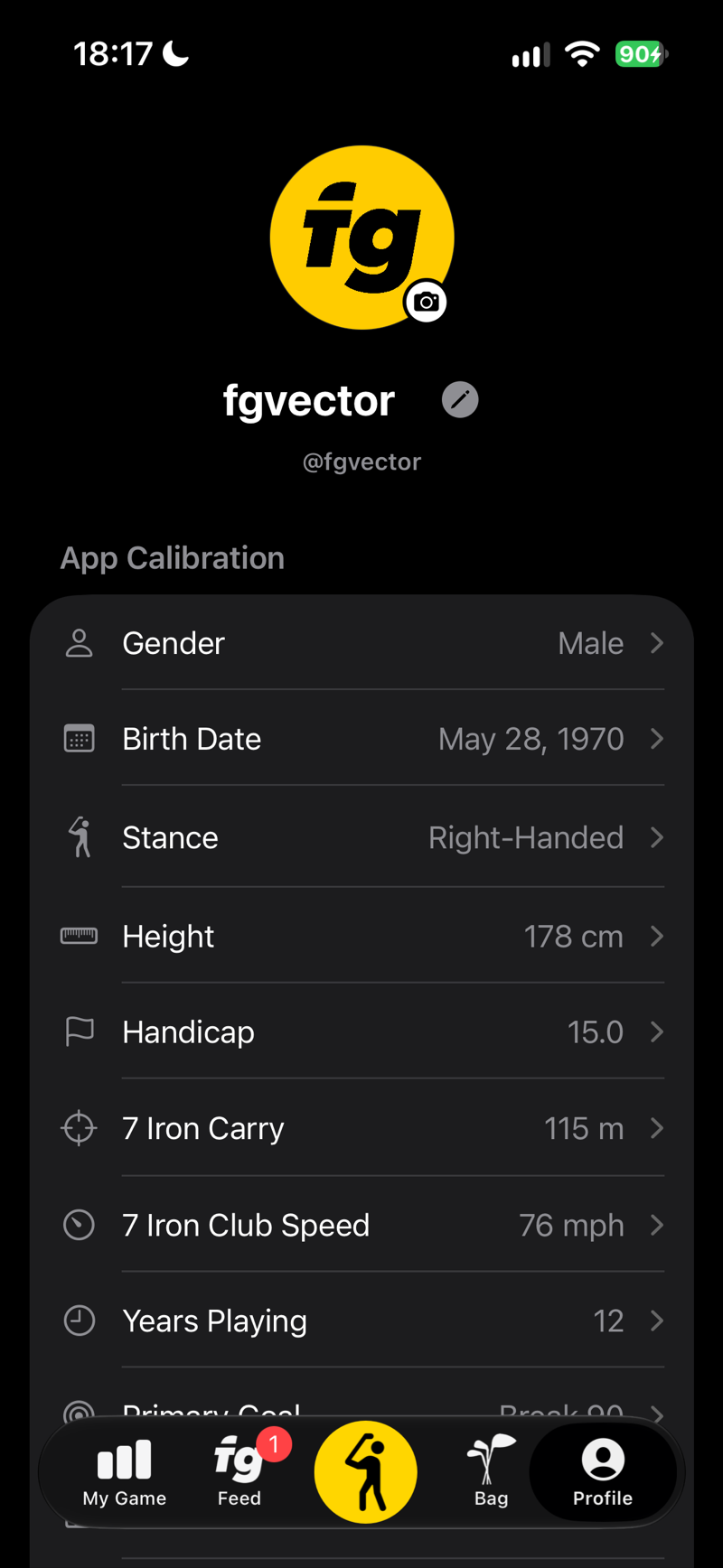
| Profile | Review and edit, one item at a time, what you entered at setup: gender, birth date, stance, height, handicap, years playing, primary goal, home club, country, and city. |
| My Coach | Open the Coach Dashboard — latest analysis, report history, and chat. |
| Distance Unit | Switch between meters and yards at any time; the whole app (and your watch) follows. |
| Subscription | See your status (trial sessions left, active subscription, or promo), activate the full version, manage or restore purchases. |
| Achievements | Your trophy collection — see Achievements. |
| Wearables & Devices | Pair a Garmin watch, check connection status, and force-sync your bag to the watch. |
| Swing videos | Toggle Save video of every shot; Stored on this phone shows how many shot videos are on your phone and how much space they take. Videos from older sessions are stored compactly at full resolution and frame rate — to make room, tap Free up space. Measuring and swing analysis work exactly the same with video saving off. Delete videos after (7, 30 or 90 days, or Never; 30 days by default) removes old video files automatically. The shot, its numbers and its flight on the driving range stay — the flight is built from the shot’s numbers, so it also comes back from the cloud on a new phone. |
| FG Lab | Experimental features, included in the free trial: ball flight curves, Driving range on external display (experimental), driving range length, and Generate curves for earlier shots with a progress bar — see FG Lab. |
| Account & System | Restore purchases, Terms & EULA, Privacy Policy, sign out, or permanently delete your account and cloud data. |
 SCREENSHOT
Profile screen with your player details
Before uninstalling the app: shot videos are stored only on your device. Uninstalling permanently deletes all saved videos — back them up first. Your measured data, stats, and achievements are safely backed up in the cloud.
Community & Public Profile
A public profile, players to follow, and a place to share your training — built around your golf, not a noisy public feed.
Your public profile
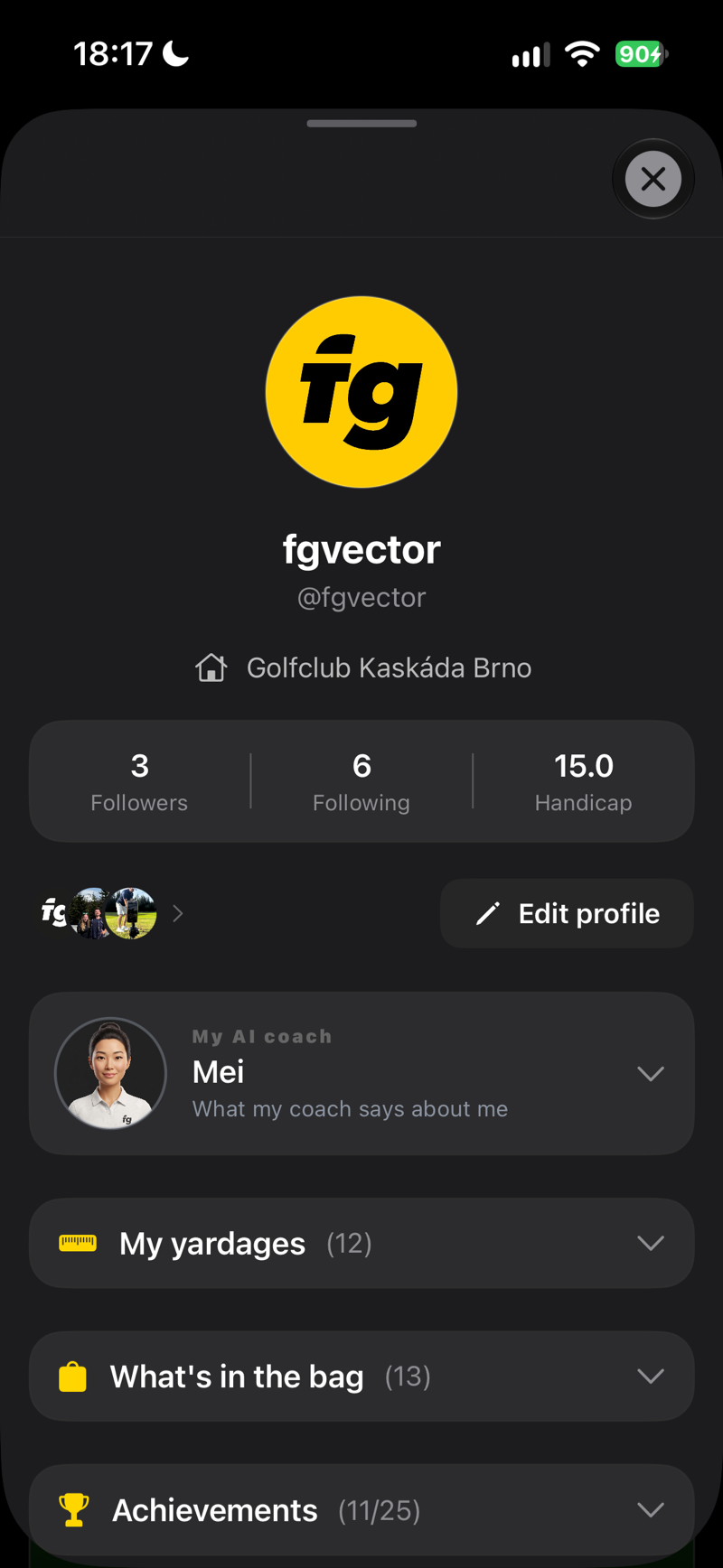
Open Profile → Edit Public Profile to pick a permanent @handle (3–20 characters: lowercase letters, numbers, and . _ -) — once you save it, it can’t be changed, so choose carefully. Your public profile shows your name, photo, and home club from your player profile, plus an optional bio, your handicap (if you choose to show it), your followers and following counts, your Yardage Guide, your Bag, and your Achievements — each collapsible, so you control what’s visible at a glance. A public profile is part of the full version.
Follow & friends
These are two separate things. Follow is one-way — anyone can follow you, no approval needed. Friend is a request you send and the other player accepts: Add friend → Request sent → Friends, with Accept or Decline on incoming requests. Removing a friend doesn’t touch following — the two stay independent.
Find players & blocking
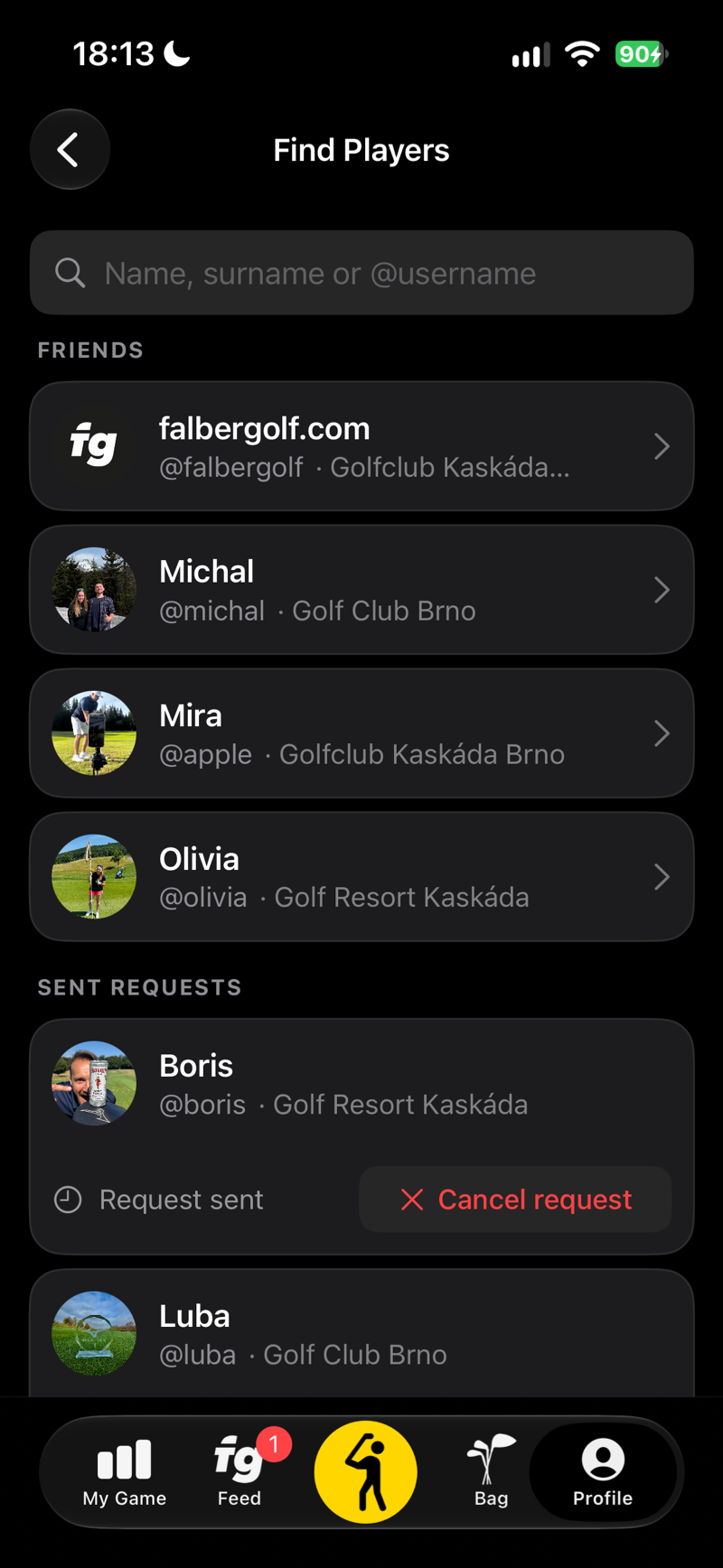
Tap Profile → Find Players and search by name, surname, or @handle — the same screen also lists your pending and sent friend requests. If someone’s bothering you, block them from their profile’s ⋯ menu: it removes any following between you and stops new friend requests. A blocked player can still turn up in search results, though.
Posts
Your public profile has its own post grid — tap New Post to share a photo with a caption, with likes and comments from other players. You can also post a whole session or a single shot straight from My Game (see below). Players who follow you or are your friends see your posts in their Feed; there’s no public timeline mixing everyone’s posts together.
Tap a post in the grid to scroll through the posts one after another, just like on Instagram. Videos play automatically without sound — tap a video to turn the sound on or off.
Share your training
Tap the share icon in your session header to turn a day’s training into a ready-made 9:16 card — shot count, best carry, average carry, top speed, and your most-used club, with the FG Vector logo. Choose Post to FG Vector to publish it on your profile, or Share elsewhere… to open the share sheet and post it to Instagram, TikTok, or Facebook Stories, save it, or send it to your coach.
 SCREENSHOT
Public profile screen
 SCREENSHOT
Find Players search and friend requests
SCREENSHOTFeed — sessions, badges and coach analyses
Your privacy stays in your hands. Hide my profile takes you out of search and out of other players’ sight while keeping your @handle reserved for later — deleting your account removes everything permanently instead.
Achievements
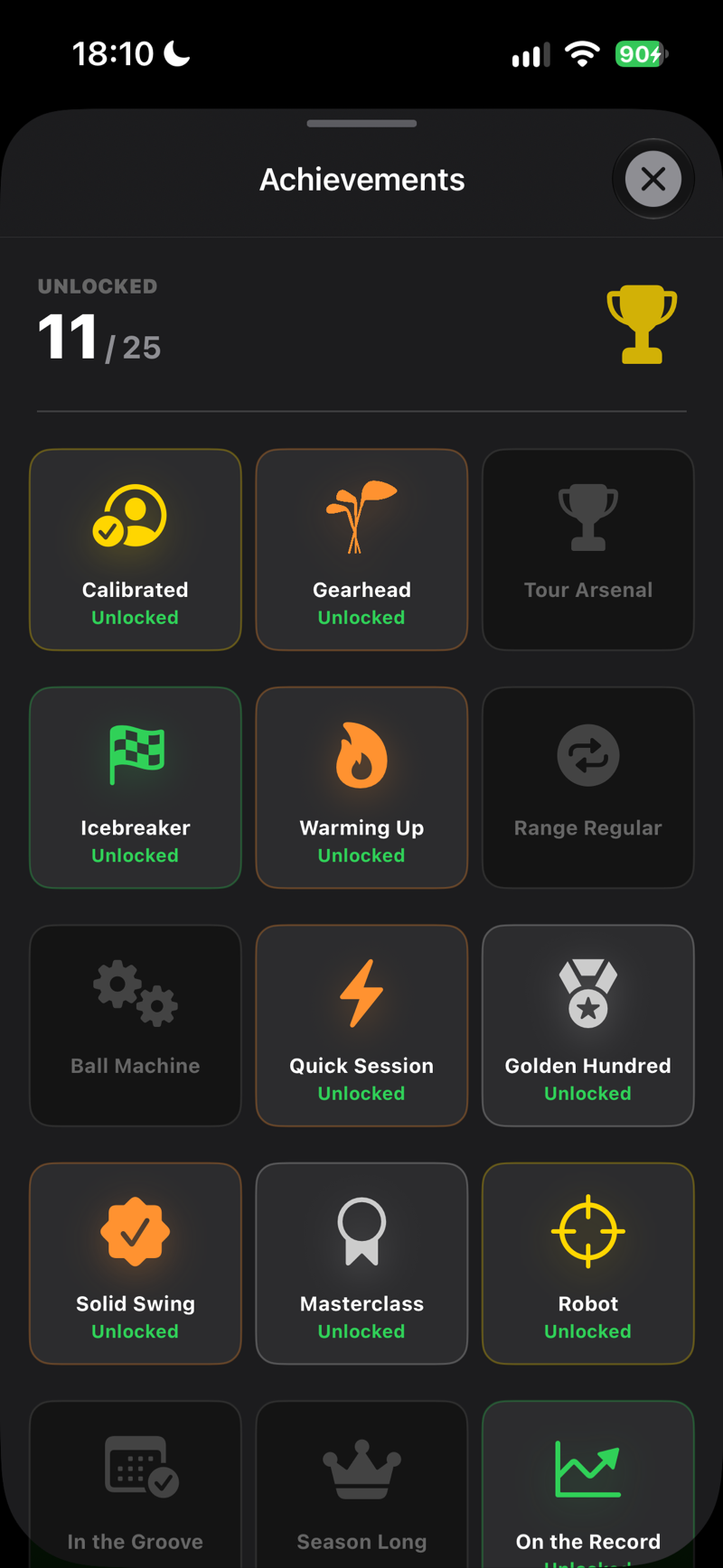
Badges reward consistent training. Unlock one and it's part of that evening's Evening summary — the one notification of the day, if you allow notifications — rather than a separate notification.
| Badge | How to earn it |
|---|---|
| Calibrated | Fill in your player profile. |
| Gearhead | Add your first club to the bag. |
| Tour Arsenal | Fill your bag with 14 clubs. |
| Icebreaker | Record your first training session. |
| Warming Up | Hit 100 total recorded shots. |
| Range Regular | Hit 1,000 total recorded shots. |
| Ball Machine | Hit 10,000 total recorded shots. |
| Quick Session | Hit 50 shots in a single day. |
| Golden Hundred | Hit 100 shots in a single day. |
| Mat Marathon | Hit 250 shots in a single day. |
| Solid Swing | Reach a swing quality score of 80. |
| Masterclass | Reach a swing quality score of 90. |
| Robot | Reach a perfect swing quality score of 100. |
| Hat-Trick | Train 3 days in a row. |
| Addict | Train 7 days in a row. |
| On the Record | Log your first handicap entry. |
| First Cut | Improve your handicap by 1 stroke or more. |
| Trending Down | Improve your handicap by 3 strokes or more. |
| Big Leap | Improve your handicap by 5 strokes or more. |
| Single Digit | Get your handicap under 10. |
| Scratch | Get your handicap to 0 or better. |
| Bookkeeper | Log your handicap 6 months in a row. |
 SCREENSHOT
Achievements grid with badges
 SCREENSHOT
Challenges against the app
 SCREENSHOT
Challenge completed — post it or share it
 SCREENSHOT
Competition detail
Apple Watch & Garmin
Keep your phone on the tripod — your results land on your wrist, live, after every shot.
What you see on the watch
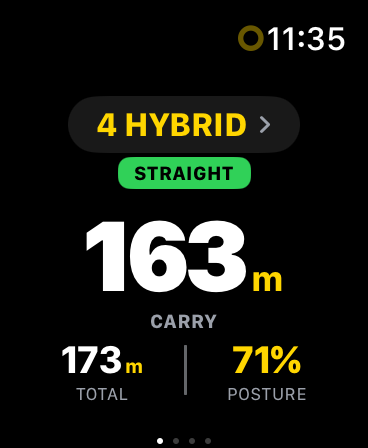
- Page 1: Carry (big), Total, Posture score — the essentials.
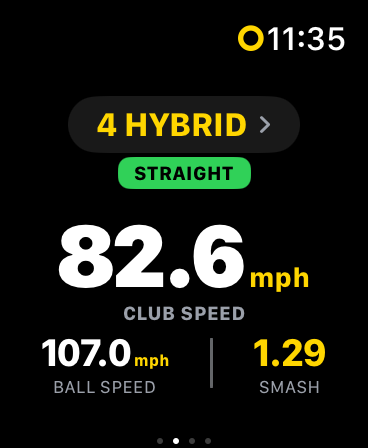
- Page 2: Club Speed, Ball Speed, Smash Factor.
- Page 3: Apex and Launch Angle.
- Shot shape badge — color-coded: green for straight, cyan for draw/fade, orange/red for bigger misses.
- Club selector — change your active club straight from the watch; the phone follows instantly.
- Practice swing — a swing without a ball isn’t counted: the watch marks it as a practice swing, just like the phone.
Automatic Workout Tracking & Fitness Focus
The moment you open the camera on your iPhone (Training tab), your watch automatically starts a golf workout in the background — no extra tap required. Closing the camera ends the workout and saves it to the Health app. For the whole session, the system also silences messages, emails, and calls on both your watch and iPhone via Fitness Focus, so nothing interrupts your practice.
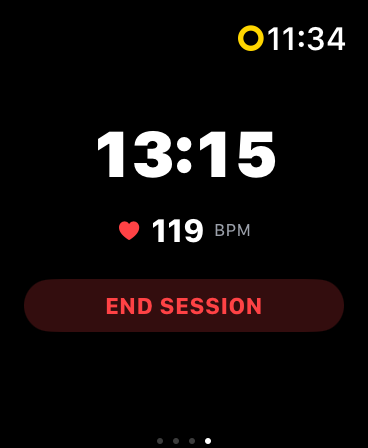
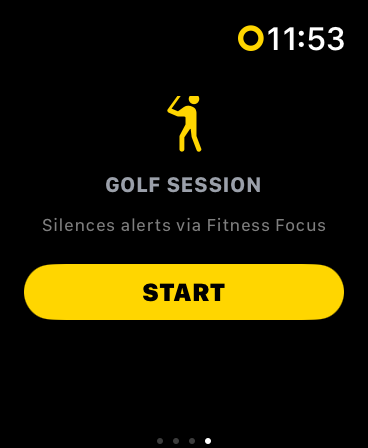
Manual control from the watch’s 4th page. Swipe left on your watch to find the session status page: a green SESSION ACTIVE indicator, a running timer, heart rate (BPM), and an END SESSION / START button. If you end the workout manually, automation won’t restart it until a new session begins.
One-time setup to silence notifications. For messages and calls to actually go quiet, set this up once on your iPhone: Settings → Focus → Fitness → add an automation “When a workout starts on Apple Watch”. Without this step the workout still runs normally, it just won’t silence notifications — this is the one part Apple leaves up to the user.
On your first session, the watch will ask for HealthKit permission — approve it, or the workout won’t start. A running workout also keeps the watch app in the foreground, so the display won’t fall back to the watch face during your session.
Garmin: Automatic notification silencing can’t be done programmatically (Connect IQ has no access to Do Not Disturb). On the watch, manually turn off “During Activity” notifications in settings instead.
Pairing
- Apple Watch: install the FG Vector watch app from the Watch app on your iPhone — it connects automatically.
- Garmin: install the FG Vector app from the Garmin Connect IQ store, then tap Profile → Pair Garmin Watch. Connection status is shown right there.
 SCREENSHOT
Watch — carry/total/posture page
 SCREENSHOT
Watch — Page 2: Club Speed, Ball Speed, Smash Factor
 SCREENSHOT
Watch — 4th page: active workout
 SCREENSHOT
Watch — Golf Session / START
Free Trial & Subscription
Try FG Vector free for 5 training sessions, with no time limit — train whenever it suits you, fill the app with your own shots and see what it can do. Your data is always yours — even after the trial ends.
- 5 free training sessions, no time limit — a session is any day on which you record at least one real shot (practice swings don’t count); more shots that day don’t use up another session. No payment details needed. Everything is included except the public profile (see the table below).
- FG Vector Pro (annual subscription) — unlocks the AI camera, smart tracer, and AI coach. Purchased securely through the App Store; current pricing is always shown in the app. Auto-renews yearly; cancel anytime in your App Store account settings at least 24 hours before renewal.
- FG Vector Pro code — received a code for FG Vector Pro, for example as a gift with your falbergolf.com order? Tap the activation link in your e-mail, or tap "I have a code" on the paywall and enter the code in Apple’s window. The code is redeemed through the App Store under your Apple ID; before you confirm, the App Store shows what the offer includes and how long it lasts. Each code can be used once.
- After the trial ends — recording new shots (the Training tab), writing to your AI coach, the public profile, and FG Lab need a subscription. Your history, videos, bag, statistics, coach reports, and profile remain fully accessible.
- Restore Purchases — new phone or reinstalled? Profile → Restore Purchases brings your subscription back instantly.
What each option includes
| Feature | Trial | Subscription | FG Vector Pro code |
|---|---|---|---|
| AI camera & automatic measuring | ✓ | ✓ | ✓ |
| AI coach — daily reports & chat | ✓ | ✓ | ✓ |
| Shot videos & swing analysis | ✓ | ✓ | ✓ |
| Bag, Yardage Guide & statistics | ✓ | ✓ | ✓ |
| Apple Watch, Garmin, Feed & achievements | ✓ | ✓ | ✓ |
| Public profile (Community) | — | ✓ | ✓ |
| FG Lab — experimental features incl. smart tracer | ✓ | ✓ | ✓ |
FG Lab
FG Lab is where new features live before they’re finished. Everything in it is off until you switch it on in Profile → FG Lab, and it’s included in your free trial; after the trial it needs an active subscription (including one redeemed with a code). Its first resident is ball flight curves (experimental): a flight path computed from your own video. It isn’t perfect and we don’t claim it is — if you switch it on, you know it’s a lab feature. Leave it off and nothing is computed at all.
With curves switched on, the shot you open is computed automatically. For earlier shots, switch on Generate curves for earlier shots under the curves toggle: it runs only while the switch is on and the app is open, shows how many shots already have a curve (the bar turns green when every shot with video has one), and switches itself off when it’s done. The phone works harder in the meantime — that’s exactly why it never starts on its own.
Driving range on a TV or monitor (experimental)
Hitting into a net or practising indoors? Switch on Driving range on external display (experimental) in Profile → FG Lab and connect a TV or monitor — with a cable (for example USB-C to HDMI) or by Screen Mirroring (AirPlay) to an Apple TV. While your iPhone records on the tripod, every shot flies on the big screen in landscape, built from its numbers as soon as the result is in. Earlier shots with the same club stay on screen as faded curves, next to a table of your last shots with a MEDIAN row; a new club starts a new series. The app’s voice stays on the phone, and the camera works exactly as it does without the screen. The switch applies the next time you connect the display.
Code not working? Each code works once and until the expiry date shown in your e-mail. Make sure you’re signed in to the App Store with your own Apple ID and that you’re signed in to FG Vector with the account you want to use, then open the activation link again. Still stuck? Email [email protected] with your order number.
Setup Tips & Troubleshooting
If your numbers look off, it's almost always the setup. Run through this checklist.
Setup checklist
- Phone on a solid tripod, perfectly vertical, three normal steps away — whole body and club in frame — facing your stance down-the-line.
- Lens at fingertip height (arm hanging naturally) — re-check whenever a different player steps in.
- Correct height and stance in your profile — these scale every measurement.
- Your current handicap in your profile — until the app has measured enough of your own shots, its estimates start from it.
- White balls — ball measurement needs them; yellow and coloured balls aren’t supported.
- Ball first: ball on the mat, then the phone aimed so the ball sits in the circle (it turns green during setup). The circle never moves — turn the phone.
- Whole body in frame, matching the silhouette.
- Daylight or good lighting — FG Vector is a camera system, and in low light the ball can’t be measured. Avoid shooting straight into a low sun.
- Sound on — FG Vector tells you by voice when to play; don’t play with the sound off. Silent mode doesn’t mute the app, low volume does.
- Select the correct club before each shot — club category affects speed and flight modeling.
Common issues
| Problem | Solution |
|---|---|
| Nothing gets measured | Go through Your routine at the range: white balls, the ball on the mat first, the phone three steps behind it and aimed so the ball sits in the circle, enough light. If the phone stands too far from the ball, the app says “Move the phone closer to the ball.” |
| I don’t hear “Ready to play” | Turn the volume up — FG Vector tells you by voice when to play. Silent mode doesn’t mute the app, but low volume does. AirPods or a Bluetooth speaker work too. In low light the app doesn’t say “Ready to play” on purpose — see the next row. |
| Recording doesn't start | Check the volume first: recording may already be running and you just don’t hear “Ready to play”. If it’s too dark, the app tells you and doesn’t say “Ready to play” — play in daylight or under good lighting. If the light is fine, the AI hasn't detected address posture. Check your full body is in frame and the status light — it must turn green at address. Reopen the ? guide and verify distance/height. |
| Shots missed in a noisy range | The audio trigger needs to hear your impact. Move away from bays directly next to you if possible, and make sure the microphone isn't covered by the tripod mount. |
| Distances look consistently high/low | Check your height in Profile and your camera setup (three normal steps away, lens at fingertip height, ball in the circle, white balls). And remember the distances are for the balls you hit: range balls fly shorter than your own ball on the course — see the Course ball switch in the Yardage Guide. |
| Watch not updating | Profile → Wearables & Devices → check connection status, then Force Sync Bag. For Garmin, make sure the Connect IQ app is installed and the watch is paired. |
| Storage filling up | Profile → Swing videos → Free up space: pick the days whose shot videos can go, or turn off Save video of every shot — measured data is always kept. |
| No coach report | Reports need AI consent granted and 30+ shots in the day (15 during the free trial of 5 training sessions). The report arrives in the evening: at 7 pm your local time, or 15 minutes after you finish if you train past 7 pm. One report per training day. |
Privacy & Your Data
- Your swing videos stay on your phone — except a post you publish, a video you attach in the support chat and a few diagnostic clips from sessions in which the ball was measured on fewer than 60% of shots (see section 2 of the Privacy Policy). Videos are never sent to AI services.
- Cloud backup covers your profile, measured shot data, achievements, and coach reports — so a new phone doesn't mean starting over.
- AI coach processing is opt-in. Only aggregated statistics and your golf profile are processed, and only after your explicit consent. Withdraw anytime.
- Delete Account (Profile → Account & System) permanently removes your account and all associated cloud data.
- Questions? Contact us at [email protected].
In-App Support
Got a question or something not working? Support is built right into the app — no digging for an email address, no leaving the app.
How to reach support
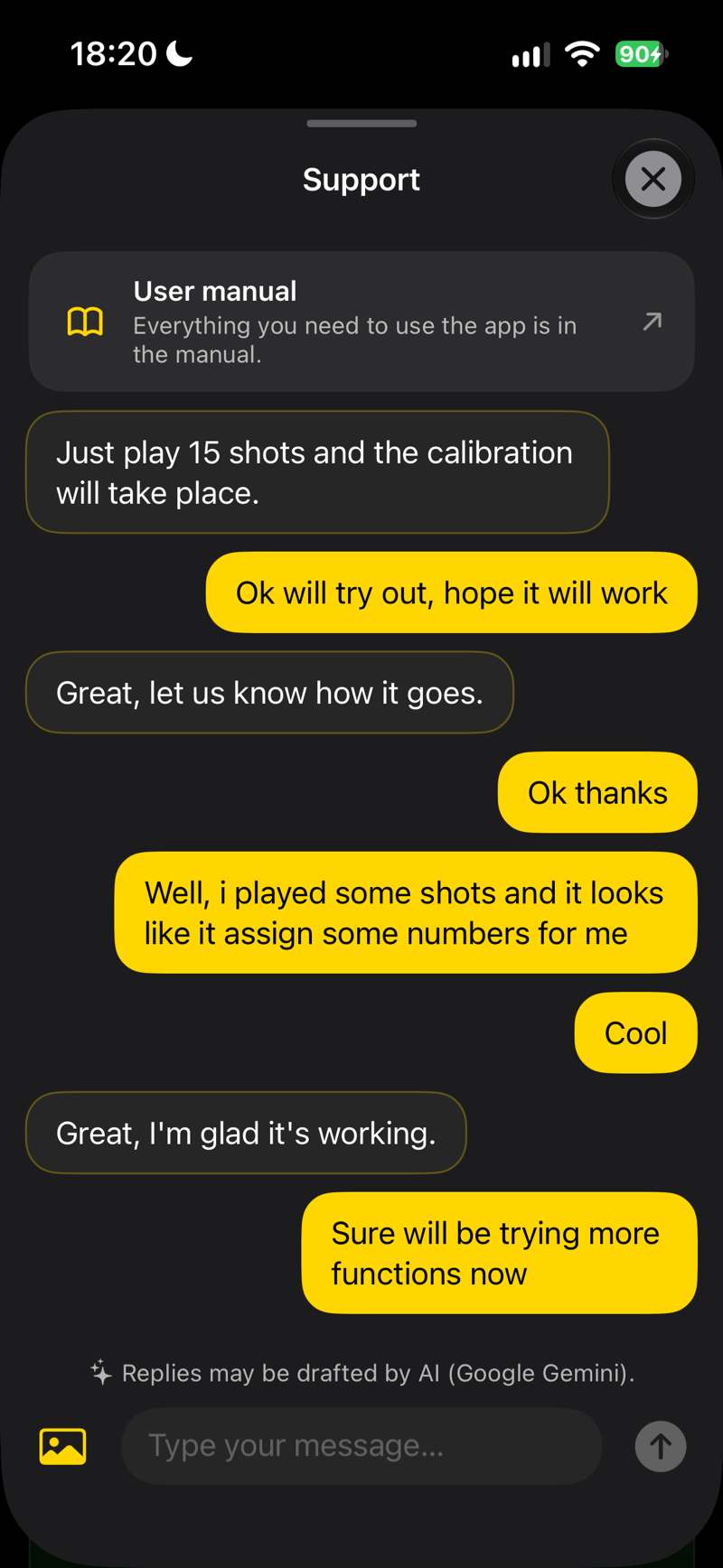
Open Profile → Account & System → Contact Support and describe your question — in whatever language you use the app in, and you’ll get a reply in the same language. Common questions get an answer right away; anything more specific gets picked up by a real person from our team, who replies directly in the same chat — the conversation looks the same either way, the reply might just take a little longer.
You’ll know the moment we reply. A push notification lands as soon as anyone answers — tap it to jump straight back into the conversation.
 SCREENSHOT
Support chat in Profile
We reach out first. Shortly after you sign up, a welcome message with tips for setting up the camera appears in support (we send it by email too). If you haven’t recorded a shot within about two days, we may send you one reminder with the same tips.
In-app support is our main way of staying in touch — faster than email, and always in your language. Email [email protected] still works too.
↑ Back to top